Data Sync
The data sync window allows you to upload Module Scripts containing your game data to Traderie in order for us to process them directly. This will keep items on our site up to date automatically for your game without us having to pull from other online sources. Syncing only runs in Roblox Studio, so it doesn't add any overhead to your game.
You can run data sync from a test place, mirror place, or development branch while you are setting up. Syncing reads marked ModuleScripts in Studio; it does not require players to join a live public server.
What to prepare
Before syncing, identify the data that Traderie should use to build your catalog:
- Which ModuleScripts contain tradeable items, characters, currencies, or other catalog entries?
- Which categories should appear separately on Traderie, such as pets, ranks, secrets, characters, or items?
- Which field is the stable item id that your game will also send in trade reports?
- Which fields contain display names, icons, rarity, or other public metadata?
- Do entries have variants, mutations, traits, combinations, or generated forms that should be tracked as properties?
- Do you have
rbxassetid://image ids available, or should images be supplied separately?
Your data does not need to match a specific shape. Traderie can adapt to your format, but these answers make the first import and later trade reporting line up correctly.
How to sync items
Mark each data ModuleScript with a Boolean attribute named TraderieData set to true.
In Studio, select the ModuleScript in Explorer, open the Attributes panel, add a Boolean attribute named TraderieData, and set it to true.
You can also set it from Luau:
local ReplicatedStorage = game:GetService("ReplicatedStorage")

local itemData = ReplicatedStorage:WaitForChild("ItemData")
itemData:SetAttribute("TraderieData", true)
Click the "Sync" button in the plugin section.

This brings up the data sync panel.
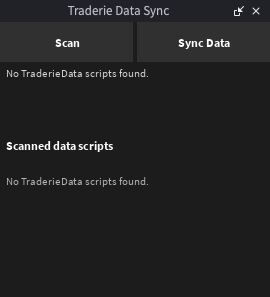
Click "Scan" to find every ModuleScript with TraderieData = true. The plugin scans ModuleScripts under ReplicatedStorage, ServerScriptService, ServerStorage, StarterPlayer, and StarterGui.
Typically games have module scripts with a broad category of items.
Your data does not have to look like this, we will adapt to any format but here is an example:
{
    dog = {
        name= "Dog",
        image = "rbxassetid://1234567890",
        rarity = "common",
    },
    cat = {
        name = Cat,
        image = "rbxassetid://4567890123",
        rarity = "common",
    },
    ...
}
If your data is stored a different way please let us know! We'd love to add support for other data formats.
You should now see all marked ModuleScripts in the list. If you wish to remove a file, click "Remove" next to it. This clears the TraderieData attribute from that ModuleScript.
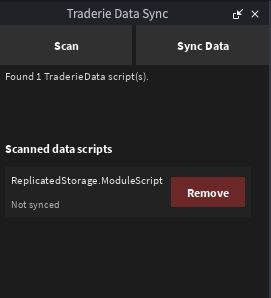
Once the marked ModuleScripts appear in the list, click "Sync Data" at the top of the window.
The list is based on ModuleScript attributes, so it is saved with your Roblox place or model. Each time you add or remove data files, click "Scan" before syncing.
If you used an older version of the plugin, the panel may show a "Legacy tracked modules" section. Click "Migrate Legacy" to add TraderieData = true to those ModuleScripts, or "Forget Legacy" to discard the old saved list.
Troubleshooting
If the sync panel says "No TraderieData scripts found", check these first:
- The attribute is on the actual ModuleScript, not on a parent Folder, Model, or service.
- The attribute name is exactly
TraderieData. - The attribute type is Boolean, not String.
- The value is set to
true. - The ModuleScript is under
ReplicatedStorage,ServerScriptService,ServerStorage,StarterPlayer, orStarterGui. - You clicked Scan again after adding or changing the attribute.
If the ModuleScript appears in the list but the synced catalog does not look right, send Traderie the ModuleScript shape and explain which fields are ids, display names, images, categories, and variants.